
Windows 11, Microsoft’s latest operating system, comes with several new features, enhanced performance, and stronger security measures. One of the most crucial yet often overlooked aspects of Windows 11 is automatic updates. These updates are designed to keep your system secure, improve performance, and introduce new features seamlessly. This article explores the ins and outs of automatic updates in Windows 11, why they are important, how they work, and how you can manage them efficiently.
What Are Automatic Updates in Windows 11?
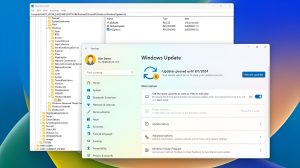
Automatic updates are a built-in Windows feature that ensures your operating system stays current without requiring constant manual intervention. These updates can include:
- Security patches: Protect your PC from the latest threats and vulnerabilities.
- Bug fixes: Resolve performance issues and errors that could affect your workflow.
- Driver updates: Keep hardware components like printers, graphics cards, and storage devices running smoothly.
- Feature updates: Introduce new functionalities, apps, or interface enhancements.
By default, Windows 11 is set to automatically download and install updates, making it easier for users to maintain system health and security.
Why Automatic Updates Are Essential
Automatic updates are not just about adding new features—they play a critical role in the security and stability of your system.
- Protection Against Cyber Threats: Windows updates frequently include patches for newly discovered vulnerabilities. Without these updates, your system could be at risk of malware attacks, ransomware, or data breaches.
- Improved System Performance: Updates often include performance enhancements and bug fixes that ensure your system runs efficiently.
- Compatibility: Software and hardware developers often design products with the latest Windows updates in mind. Automatic updates ensure your PC remains compatible with new apps and devices.
- New Features: Microsoft continually releases new features and improvements through Windows Update. Automatic updates help you enjoy the latest tools without manual downloads.
How Automatic Updates Work in Windows 11
Windows 11 uses a sophisticated system called Windows Update, which is part of the Settings app. Here’s a step-by-step overview of how updates are handled:
- Update Detection: Windows periodically checks Microsoft servers for new updates. This happens automatically in the background, so you don’t need to start the process manually.
- Download Process: Once updates are detected, Windows downloads them automatically. Critical security updates are usually prioritized.
- Installation: After downloading, updates are installed based on your settings. Some updates require a restart, while others can install without interrupting your work.
- Notification & Restart: Windows may prompt you to restart your PC to complete the installation. You can schedule the restart to avoid disruptions.
Types of Automatic Updates in Windows 11
Windows 11 offers several types of updates, each serving a different purpose:
- Quality Updates: These are frequent updates focusing on security, bug fixes, and minor improvements. They are usually small in size and require minimal system resources.
- Feature Updates: These updates are released semi-annually and include major changes such as new apps, interface improvements, or productivity features.
- Driver Updates: Windows 11 can automatically update hardware drivers to improve performance and compatibility with peripherals like printers, graphics cards, and audio devices.
- Optional Updates: These include updates for third-party drivers, language packs, or non-critical patches. Users can choose whether to install them.
How to Manage Automatic Updates in Windows 11
While automatic updates are convenient, some users prefer more control over the update process. Download Windows 12 Iso provides several options:
1. Pause Updates
You can temporarily pause updates for up to 35 days:
- Go to Settings > Windows Update.
- Click Pause updates for 7 days or customize the pause period.
2. Schedule Restart Times
To avoid disruption, Windows 11 allows you to schedule restarts:
- Open Settings > Windows Update > Advanced options.
- Enable Schedule a restart and select a time that suits your workflow.
3. Active Hours
Active Hours lets Windows know when you are usually using your PC:
- Go to Settings > Windows Update > Change active hours.
- Set your typical work hours to prevent automatic restarts during that time.
4. Optional Updates Management
You can review optional updates and install them manually:
- Navigate to Settings > Windows Update > Optional updates.
- Select the updates you want to install.
5. Group Policy & Registry Tweaks
For advanced users, updates can be managed via Group Policy Editor or Registry Editor, allowing more granular control over how updates are downloaded and installed. These methods are recommended for IT professionals or experienced users.
Common Issues with Automatic Updates
Automatic updates are generally beneficial, but they can occasionally cause issues:
- Update Failures: Sometimes updates fail to install due to network issues, corrupted files, or incompatible drivers.
- Performance Slowdowns: Large updates might slow down your system temporarily during installation.
- Compatibility Problems: Rarely, an update may conflict with certain software or hardware, requiring troubleshooting or rollbacks.
Tips for a Smooth Update Experience
- Maintain Sufficient Storage: Ensure your PC has enough free space for updates. Windows Update usually requires several GB of storage for feature updates.
- Stable Internet Connection: Updates can fail if the network connection is interrupted. Use a stable and reliable connection.
- Backup Important Files: Before major updates, create a backup to prevent data loss.
- Use Windows Update Troubleshooter: If updates fail, Windows 11 has a built-in troubleshooter that can identify and fix common issues.
Benefits of Keeping Automatic Updates Enabled
Keeping automatic updates enabled ensures your Windows 12 Download PC remains secure, stable, and future-proof. You can enjoy:
- Faster security response times: Immediate protection against newly discovered threats.
- Better software compatibility: Smooth operation of new apps and peripherals.
- Access to the latest features: Always have the newest tools and UI improvements.
Conclusion
Automatic updates in Windows 11 are more than a convenience—they are a critical component of a secure, efficient, and modern computing experience. By understanding how updates work, managing them wisely, and keeping your system up-to-date, you ensure your PC runs at peak performance while staying protected from cyber threats.
Whether you are a casual user or a tech enthusiast, embracing Windows 11’s automatic updates will help you make the most of Microsoft’s latest operating system. With the right settings and a proactive approach, updates can become a seamless part of your digital routine, keeping your system secure and future-ready.